Join, close and use chat
You can talk to other players across the world in Gems of War! Select the speech bubble icon in the top-middle of the screen to use global-chat.
The global chat allows you to talk to other players connected to chat in Gems of War or to talk to your other Guild members. You can use a smaller lite version of the chat whilst playing the game. To avoid a ban, make sure you avoid inappropriate language or behavior which is against the community guidelines. There are some channels for other languages and multiple cosmetic social collectibles to use in chat.
Contents
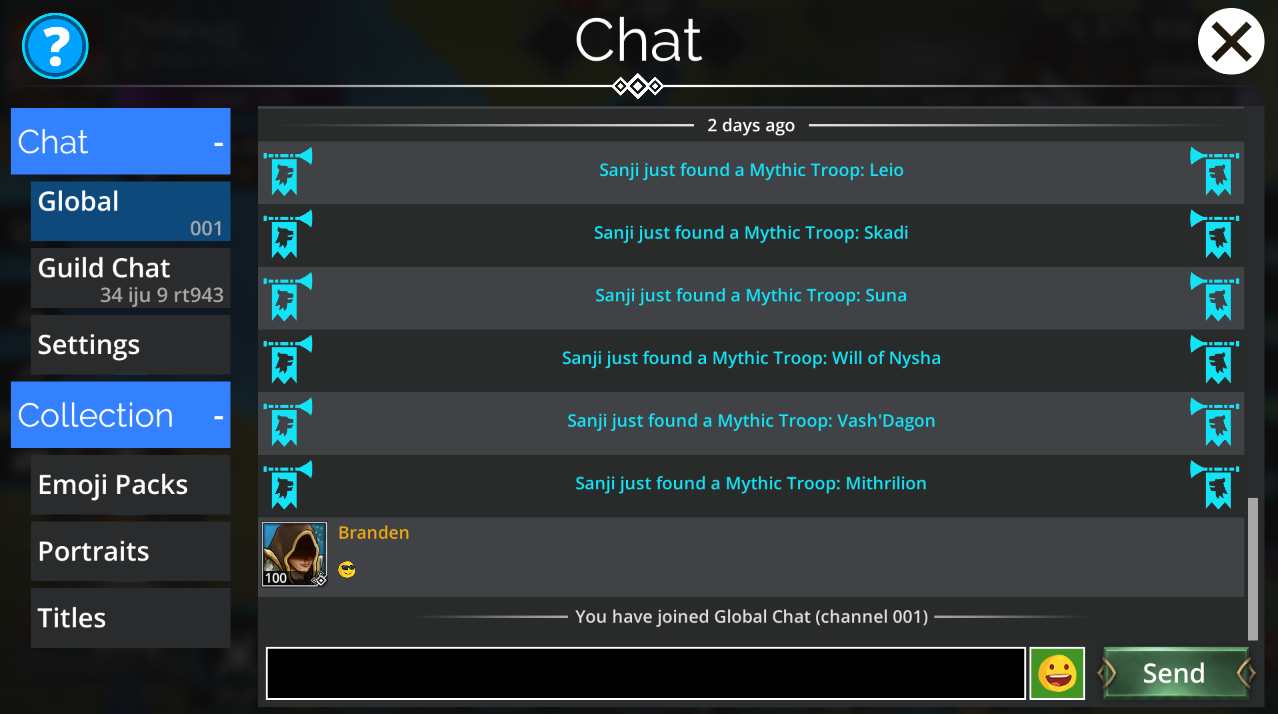
Join global chat
The global chat can be accessed from most parts of the game. To connect to global chat:
Select the Chat icon (speech bubbles) from the top of the screen
On PS4, use the large Touchpad button in the middle of the controller
On Xbox One, use the View button
In the confirmation box, select Yes
You will join the first available chat channel which is not full.
Chat channels
For a full list of channels and what languages are spoken in them, go here. To access Guild Chat for the first time you will need to join chat and then select Guild Chat.
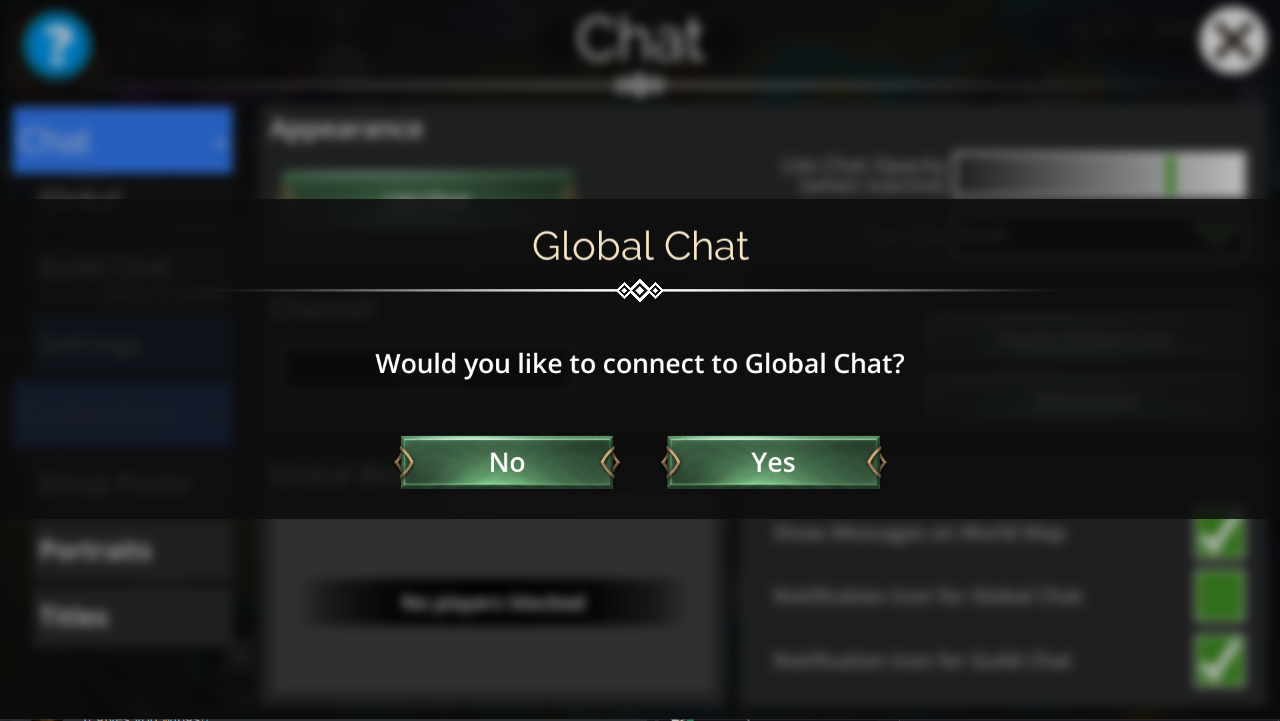
Leave global chat
To leave global chat:
Open the Chat menu
Select Chat > Settings on the left of the Chat menu
In Settings, choose Disconnect
To stay connected to your Guild Chat, select Leave Global Chat instead
Chat settings
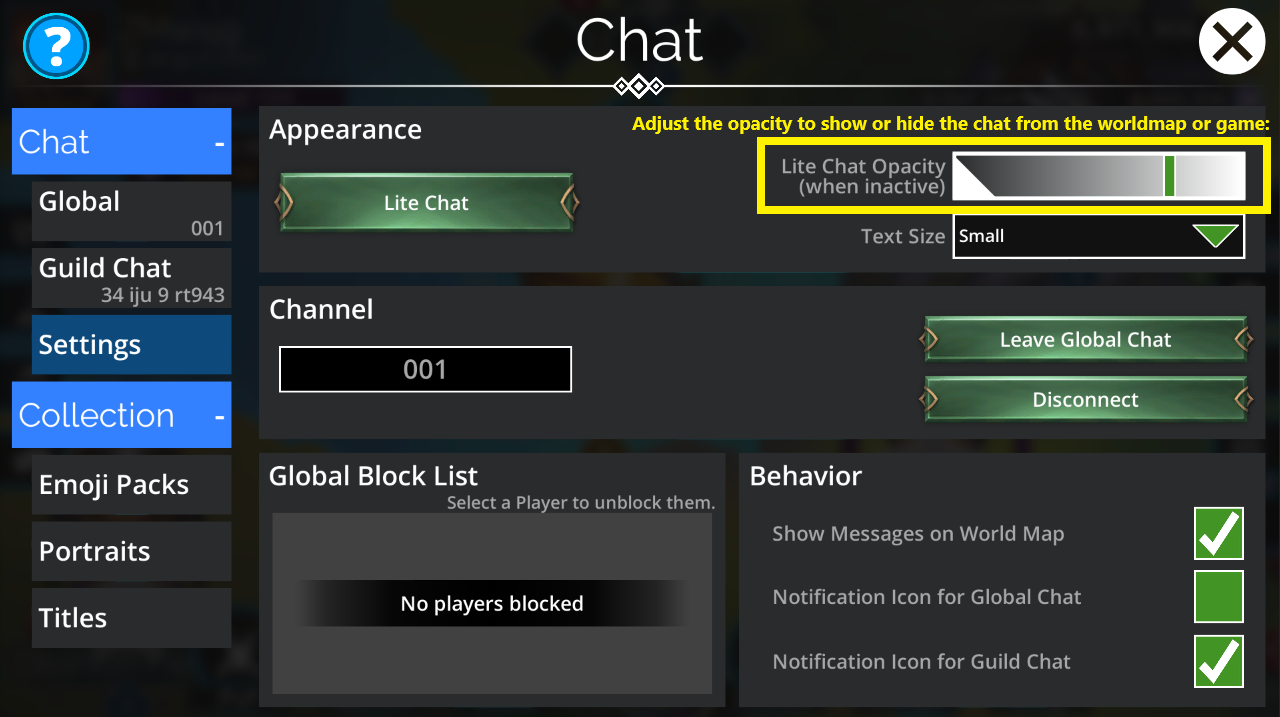
In the chat settings, you can adjust a number of functions relating to the global chat, including:
Appearance
Switch to Lite chat and change the text size
Change channels
Leave global chat
Disconnect from chat to stop all messages completely (including Guild Chat)
Global block list
To block a player, select them in chat > View profile > select Block
Behavior
Enable or disable the preview for messages appearing when you are playing on the world map
Enable or disable the small "!" notification icon for global and Guild chat when new messages appear.
Lite chat
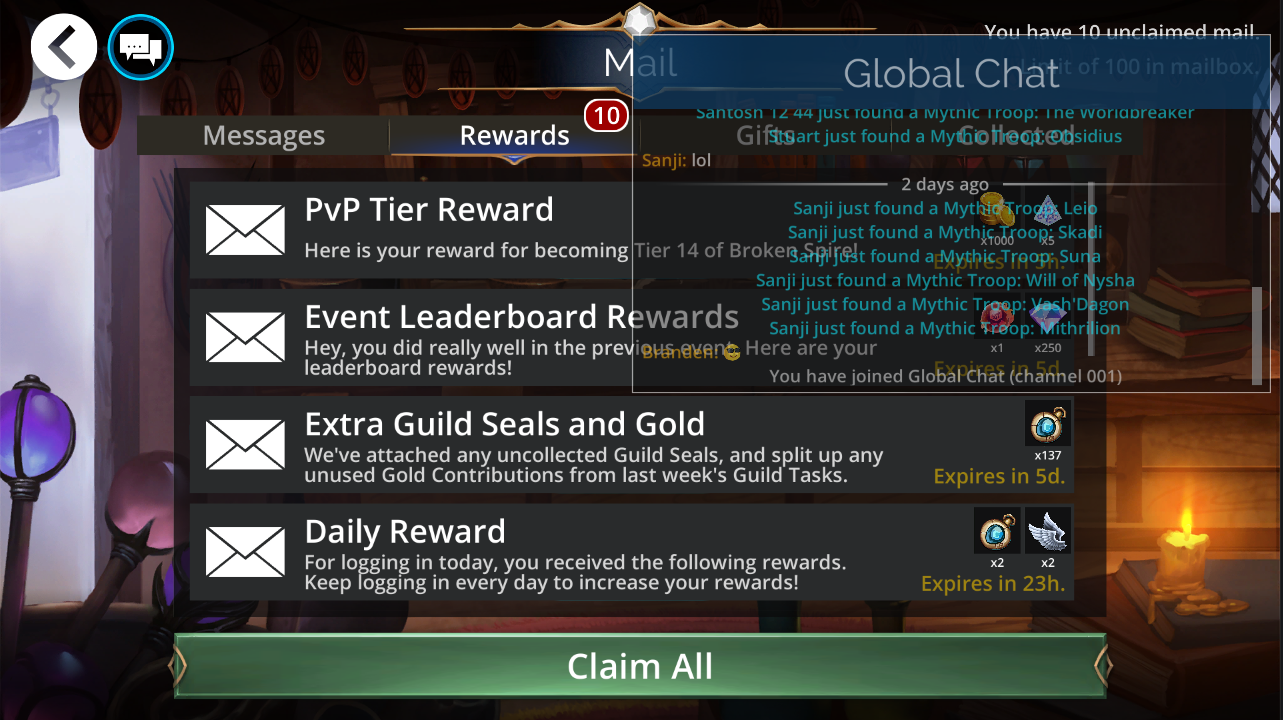
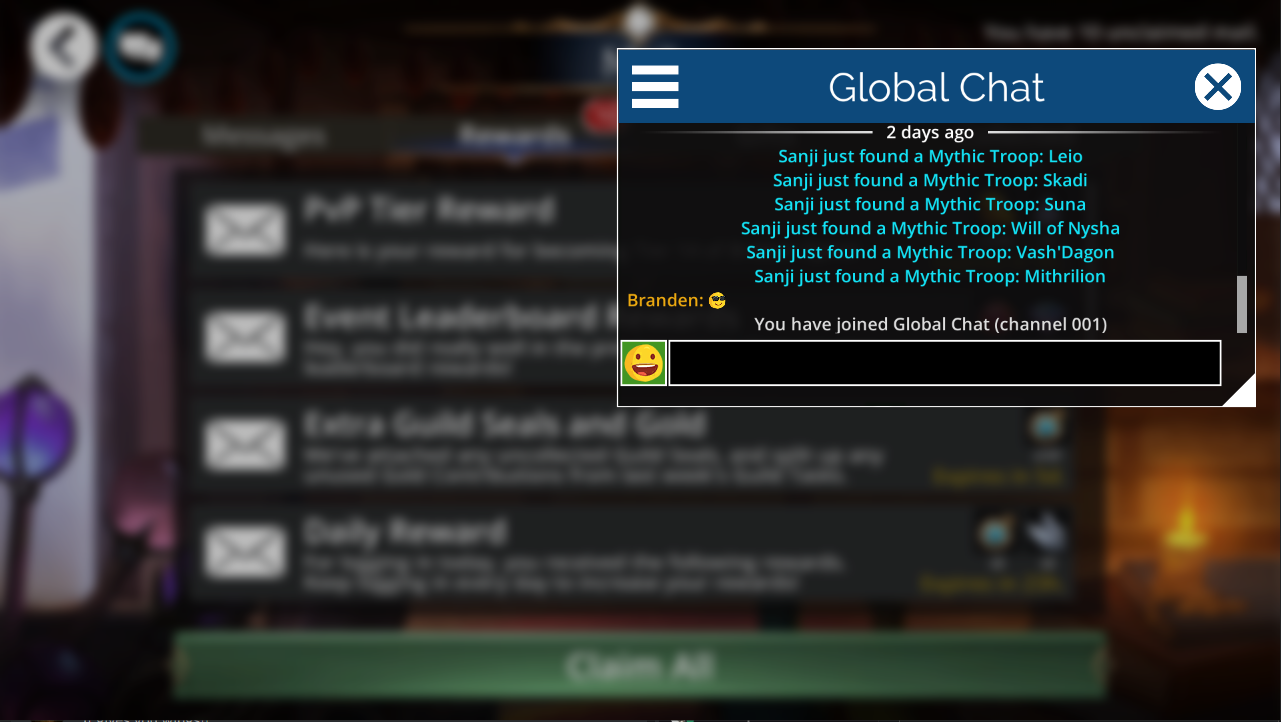
Lite chat is a small, windowed version of global chat which allows you to use the Worldmap and chat at the same time. Select the three hamburger style lines in the top-left hand corner of the menu to access important settings quickly and return to the main menu.
Using Lite Chat over the Worldmap - chat opacity
Use the gradient slide bar inside the Chat Settings menu to adjust the opacity or transparency of how the lite chat appears over the worldmap. The further the green bar is the left, the more of the chat you will see. You can change the opacity of the Lite chat so that the chat menu will appear over most of the game. Although the menu appears over the game, it won't get in your way: select the chat icon at the top of the screen to activate the menu and message other players.
Collections
You can use emojis in global chat and also see portraits and titles of other players. For more information on these social collections see this article: Social collectibles overview.
Chat History
When you open the chat, some of the previous conversation will be saved so you can read back on what happened while you were offline.
For Global chat, the last 30 lines are shown
For Guild chat, the last 100 lines or up to 5 weeks of logs are shown (whichever limit is reached first)