Share mode and screenshots
Overview
Screen capture your favourite troops and weapons to either keep for yourself or share with the community!
Navigation
The screencapture feature can be found inside the Troops Menu.
Steps:
1. Inside the Troops Menu, select a troop or weapon of your choice.
2. Select "More Upgrades" to Open the Troop Information Screen.
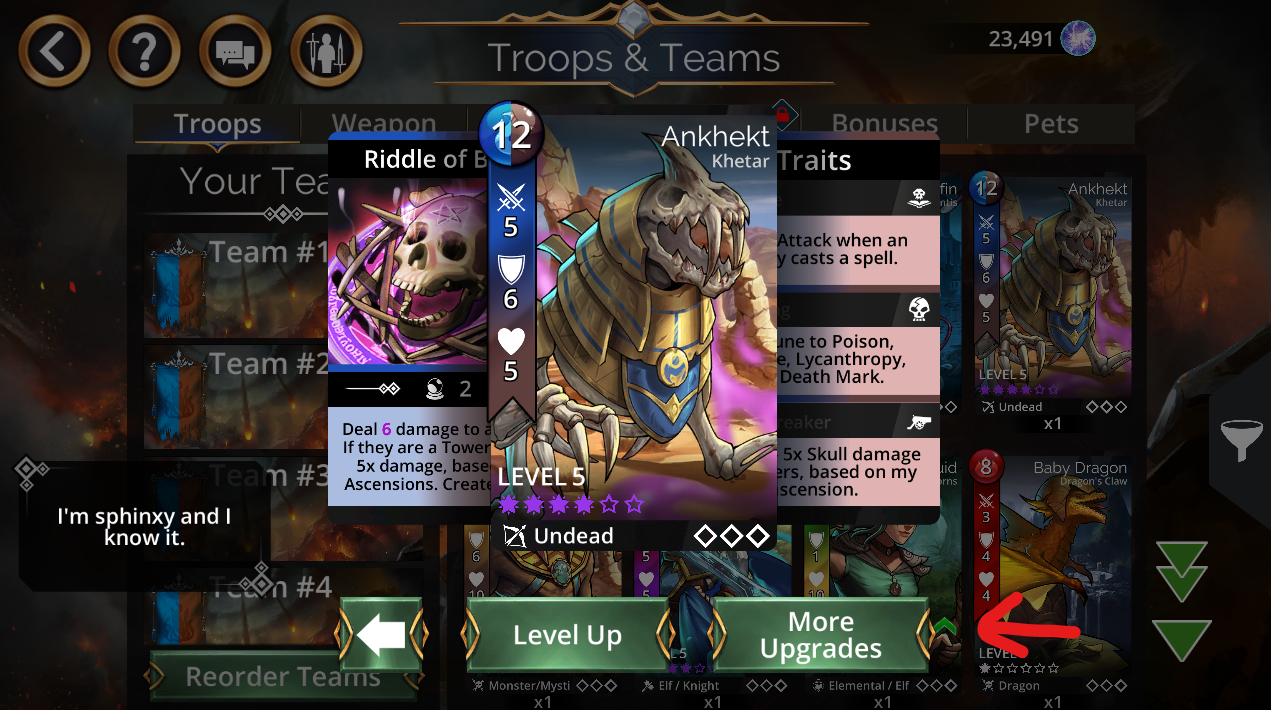
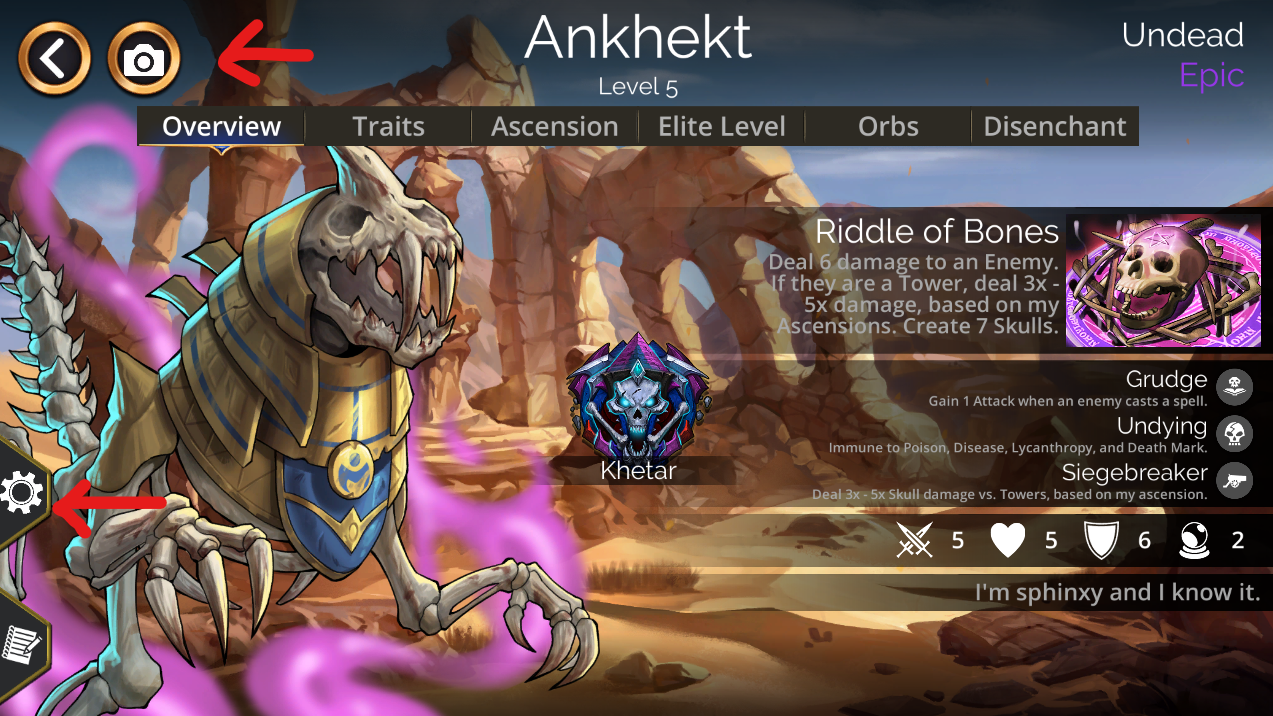
3. Select the Camera Icon located at the top-left corner to take a screencapture.
4. Select the Cogwheel Icon on the bottom-left to open the screeencapture settings.
Screenshot Settings
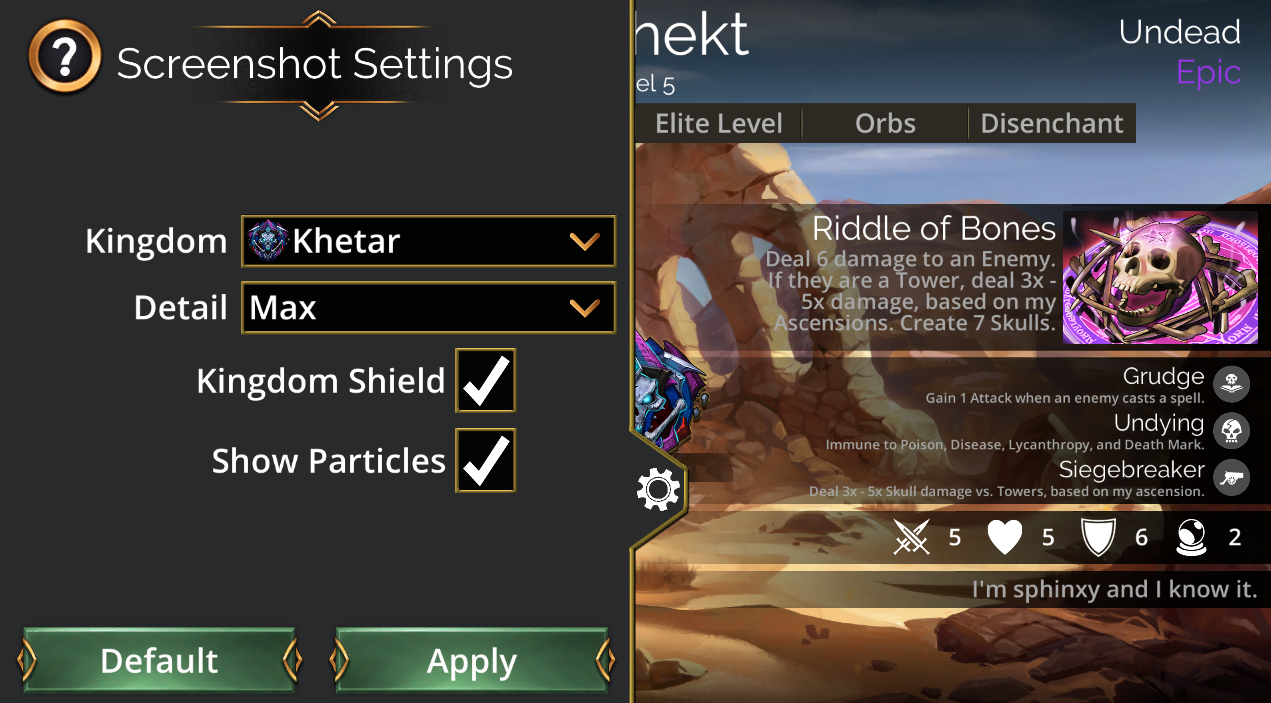
After selecting the cogwheel to open the screencapture settings, you have several options.
Kingdom - Select the Kingdom Background you would like from the dropdown menu.
(You can only select Kingdoms that you have unlocked)
Detail - Select the amount of information you would like displayed in the dropdown menu.
(1 is Low Detail, 7 is High Detail, and Max includes the troop/weapon flavour text.)
Kingdom Shield - Toggle to show/hide the Kingdom's Icon
(Note: This Shield only shows the Kingdom to which the troop/weapon belongs)
Show Particles - Toggle to show/hide small particle effects onscreen
Tips
Remember to select "Apply" in the Screenshot settings to successfully save and apply your chosen layout.
Default Button allows you to return to the default screenshot settings
Default Troop/Weapon Kingdom
Max Detail (Includes troop/weapon flavour description text)
Kingdom Shield Toggled ON
Show Particles Toggled ON