Enable and disable push notifications (alerts)
To receive Push Notifications or alerts from Gems of War, you must enable notifications in-game and in your device's Settings.
Notifications are only available on mobile devices and PC. If you are playing on a console you can set up Alerts to appear for your game account on your mobile or PC device using the email opt-in.
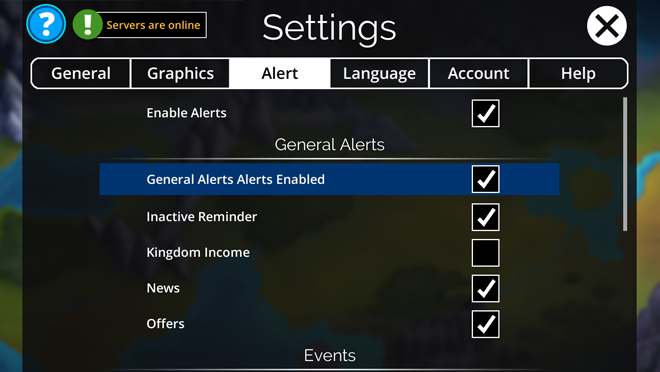
Available notifications
Events
PvP
Guild
How to enable notifications
iOS
Android and Amazon
PC
Console (PS4 and Xbox One)
Available notifications
General Alerts
Inactive Reminder - sends a notification if you've been inactive for 24 hours
Kingdom Income - Notifies you when Tribute is waiting to be collected
News - Notifies you when there's a new News announcement
Offers - Notifies you when a new Offer is available
Events
Guild Wars
Raid Boss
Invasion
Class Trial
Faction Assault
Pet Rescue - Notifies you of a scheduled 24 hour Pet Rescue Event starting
Bounty
Vault - Notifies you when a Vault event begins
Tower of Doom
Battlecrasher
PvP
PvP Rewards - Notifies you when there are Defense rewards waiting to be collected in PvP
Guild
Pet Rescue from Guildmate
Guild Activity - Notifies you when someone has taken an action in your Guild. For example, completing a Guild Task
Guild Chat - Notifies you when there's a new message in the Guild Chat
How to enable notifications
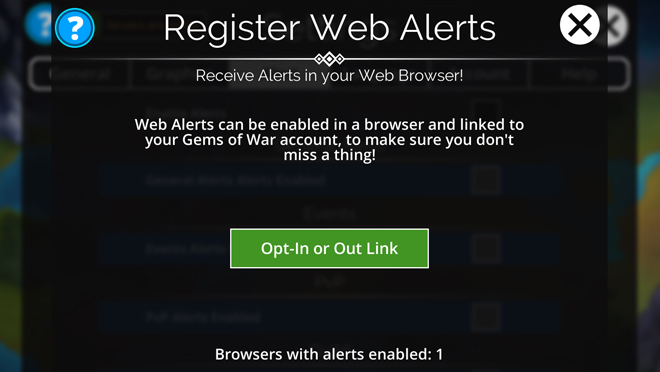
Notifications must first be enabled in the game inside Settings > Alert > Enable Alerts.
iOS
When first selecting the Enable Alerts box from Settings > Alerts, your device will ask if you would like to enable Notifications. To enable notifications on iOS, select Yes. If you have any further difficulties enabling them, go to:
Settings
Notifications
Gems of War
Tap the "Allow Notifications" Slider to turn on Notifications and choose your preferences.
Return to the game and open Settings > Alerts and select Enable Alerts.
Android and Amazon
On Android, Notifications are generally enabled by default when you install the game. To change this, go to:
Settings
Notifications
App Notifications
Locate Gems of War
Select your preferences for the type of notifications you'd like to see, or turn off "Block all notifications" to show your other notification options.
Or
Settings
Apps
Locate Gems of War
Notifications
Select your preferences for the type of notifications you'd like to see, or turn off "Block all notifications" to show your other notification options.
PC
You can receive Gems of War alerts in your Web browser if you'd like to. To enable them, go to:
Settings in game
Alert
Enable Web Alerts
Select Opt-In or Out Link
In your web browser, select the Opt-In button.
Follow the same steps above if you wish to Opt-Out later. If you are experiencing issues enabling notifications on your computer, see: Enabling alerts on Windows 10.
PS4 & Xbox One
On Console, you can have web alerts sent to your phone or PC. To enable Alerts, on your PS4 or Xbox, go to:
The Settings menu in Gems of War
Navigate to the Alert tab
Select Enable Alerts
Select Opt-In
Enter your email address
Open the email on the phone, PC or device you'd like to receive the Alerts on and follow the instructions.
Follow the same steps above if you wish to Opt-Out later.